# Subscribe from your phone
You can use the ntfy [Android App](https://play.google.com/store/apps/details?id=io.heckel.ntfy) or [iOS app](https://apps.apple.com/us/app/ntfy/id1625396347)
to receive notifications directly on your phone. Just like the server, this app is also open source, and the code is available
on GitHub ([Android](https://github.com/binwiederhier/ntfy-android), [iOS](https://github.com/binwiederhier/ntfy-ios)). Feel free to
contribute, or [build your own](../develop.md).
You can get the Android app from [Google Play](https://play.google.com/store/apps/details?id=io.heckel.ntfy),
[F-Droid](https://f-droid.org/en/packages/io.heckel.ntfy/), or via the APKs from [GitHub Releases](https://github.com/binwiederhier/ntfy-android/releases).
The Google Play and F-Droid releases are largely identical, with the one exception that the F-Droid flavor does not use Firebase.
The iOS app can be downloaded from the [App Store](https://apps.apple.com/us/app/ntfy/id1625396347).
Alternatively, you may also want to consider using the **[progressive web app (PWA)](pwa.md)** instead of the native app.
The PWA is a website that you can add to your home screen, and it will behave just like a native app.
If you're downloading the APKs from [GitHub](https://github.com/binwiederhier/ntfy-android/releases), they are signed with
a certificate with the following SHA-256 fingerprint: `6e145d7ae685eff75468e5067e03a6c3645453343e4e181dac8b6b17ff67489d`.
You can also query the DNS TXT records for `ntfy.sh` to find this fingerprint.
## Overview
A picture is worth a thousand words. Here are a few screenshots showing what the app looks like. It's all pretty
straight forward. You can add topics and as soon as you add them, you can [publish messages](../publish.md) to them.
If those screenshots are still not enough, here's a video:
Sending push notifications to your Android phone
## Message priority
_Supported on:_ :material-android: :material-apple:
When you [publish messages](../publish.md#message-priority) to a topic, you can **define a priority**. This priority defines
how urgently Android will notify you about the notification, and whether they make a sound and/or vibrate.
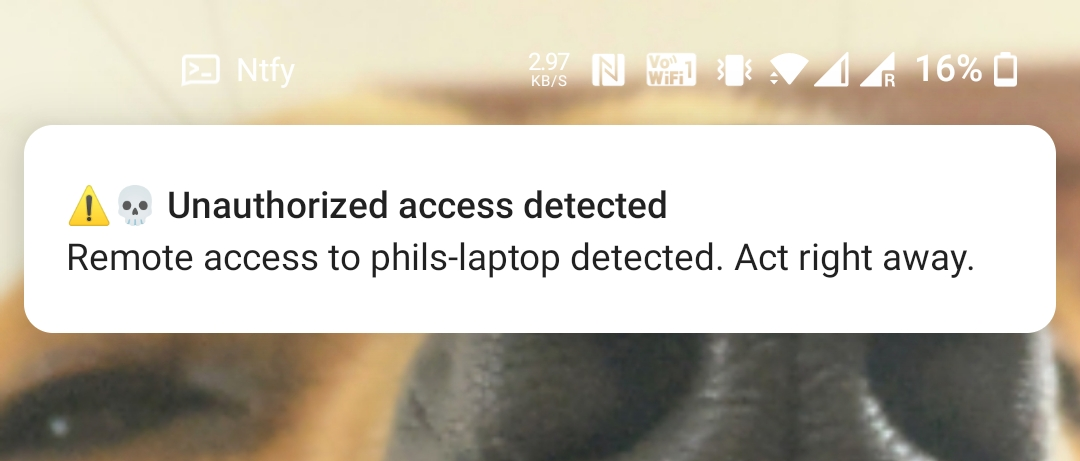
By default, messages with default priority or higher (>= 3) will vibrate and make a sound. Messages with high or urgent
priority (>= 4) will also show as pop-over, like so:
{ width=500 }
High and urgent notifications show as pop-over
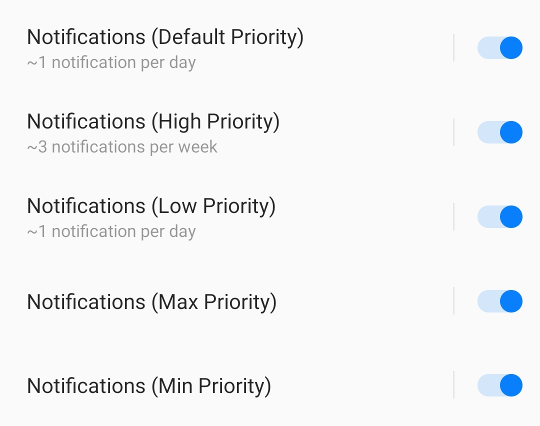
You can change these settings in Android by long-pressing on the app, and tapping "Notifications", or from the "Settings"
menu under "Channel settings". There is one notification channel for each priority:
{ width=500 }
Per-priority channels
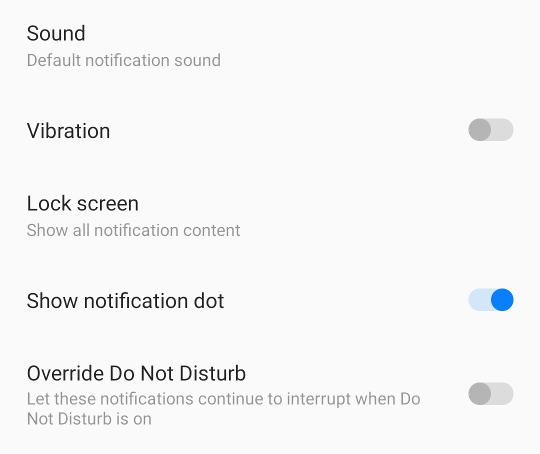
Per notification channel, you can configure a **channel-specific sound**, whether to **override the Do Not Disturb (DND)**
setting, and other settings such as popover or notification dot:
{ width=500 }
Per-priority sound/vibration settings
## Instant delivery
_Supported on:_ :material-android:
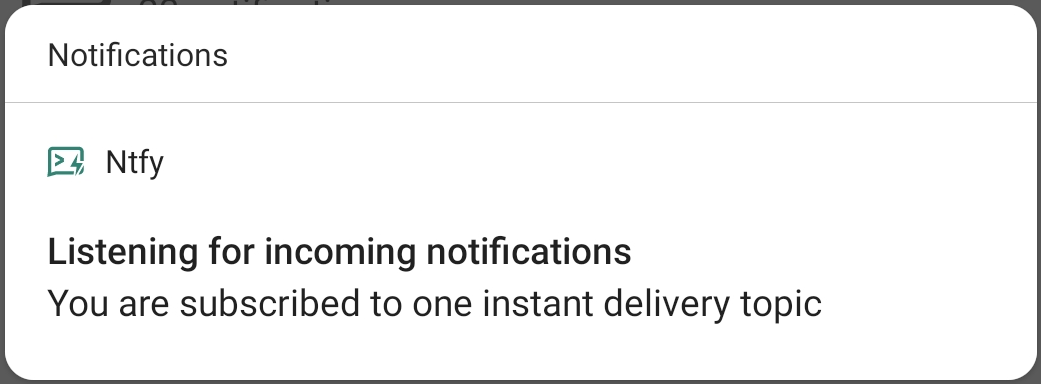
Instant delivery allows you to receive messages on your phone instantly, **even when your phone is in doze mode**, i.e.
when the screen turns off, and you leave it on the desk for a while. This is achieved with a foreground service, which
you'll see as a permanent notification that looks like this:
{ width=500 }
Instant delivery foreground notification
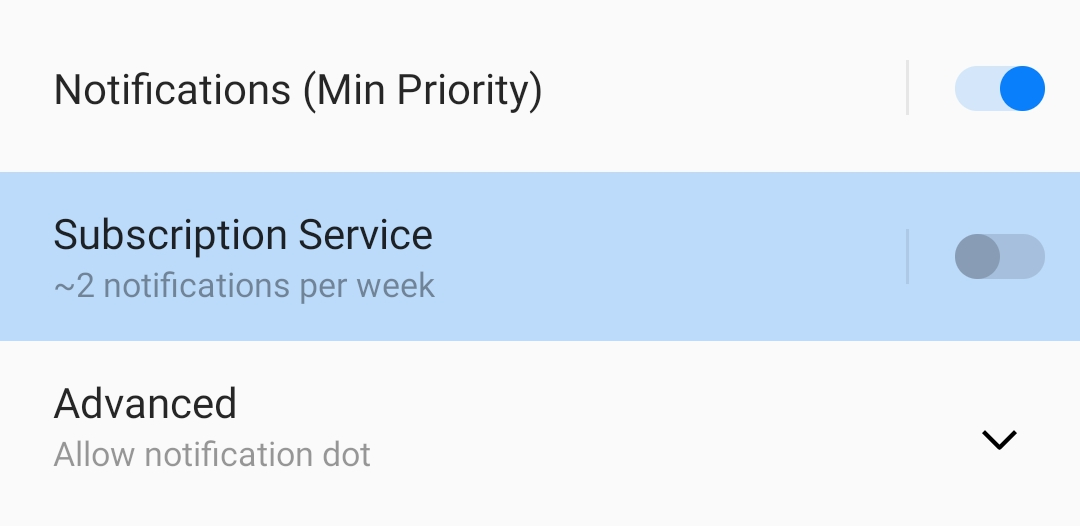
To turn off this notification, long-press on the foreground notification (screenshot above) and navigate to the
settings. Then toggle the "Subscription Service" off:
{ width=500 }
Turning off the persistent instant delivery notification
**Limitations without instant delivery**: Without instant delivery, **messages may arrive with a significant delay**
(sometimes many minutes, or even hours later). If you've ever picked up your phone and
suddenly had 10 messages that were sent long before you know what I'm talking about.
The reason for this is [Firebase Cloud Messaging (FCM)](https://firebase.google.com/docs/cloud-messaging). FCM is the
*only* Google approved way to send push messages to Android devices, and it's what pretty much all apps use to deliver push
notifications. Firebase is overall pretty bad at delivering messages in time, but on Android, most apps are stuck with it.
The ntfy Android app uses Firebase only for the main host `ntfy.sh`, and only in the Google Play flavor of the app.
It won't use Firebase for any self-hosted servers, and not at all in the F-Droid flavor.
!!! info "F-Droid: Always instant delivery"
Since the F-Droid build does not include Firebase, **all subscriptions use instant delivery by default**, and
there is no option to disable it. The F-Droid app hides all mentions of "instant delivery" in the UI, since
showing options that can't be changed would only be confusing.
## Publishing messages
_Supported on:_ :material-android:
The Android app allows you to **publish messages directly from the app**, without needing to use curl or any other
tool. When enabled in the settings (Settings → General → Show message bar), a **message bar** appears at the bottom
of the topic view (it's enabled by default). You can type a message and tap the send button to publish it instantly.
If the message bar is disabled, you can tap the floating action button (FAB) at the bottom right instead.
For more options, tap the expand button next to the send button to open the full **publish dialog**. The dialog lets
you compose a full notification with all available options, including title, tags, priority, click URL, email
forwarding, delayed delivery, attachments, Markdown formatting, and phone calls.
## Share to topic
_Supported on:_ :material-android:
You can share files to a topic using Android's "Share" feature. This works in almost any app that supports sharing files
or text, and it's useful for sending yourself links, files or other things. The feature remembers a few of the last topics
you shared content to and lists them at the bottom.
The feature is pretty self-explanatory, and one picture says more than a thousand words. So here are two pictures:
## ntfy:// links
_Supported on:_ :material-android:
The ntfy Android app supports deep linking directly to topics. This is useful when integrating with [automation apps](#automation-apps)
such as [MacroDroid](https://play.google.com/store/apps/details?id=com.arlosoft.macrodroid) or [Tasker](https://play.google.com/store/apps/details?id=net.dinglisch.android.taskerm),
or to simply directly link to a topic from a mobile website.
!!! info
Android deep linking of http/https links is very brittle and limited, which is why something like `https:////subscribe` is
**not possible**, and instead `ntfy://` links have to be used. More details in [issue #20](https://github.com/binwiederhier/ntfy/issues/20).
**Supported link formats:**
| Link format | Example | Description |
|---------------------------------------------------------------------------------|-------------------------------------------|-----------------------------------------------------------------------------------------------------------------------------------------------------------------------------------------------------|
| `ntfy:///` | `ntfy://ntfy.sh/mytopic` | Directly opens the Android app detail view for the given topic and server. Subscribes to the topic if not already subscribed. This is equivalent to the web view `https://ntfy.sh/mytopic` (HTTPS!) |
| `ntfy:///?display=` | `ntfy://ntfy.sh/mytopic?display=My+Topic` | Same as above, but also defines a display name for the topic. |
| `ntfy:///?secure=false` | `ntfy://example.com/mytopic?secure=false` | Same as above, except that this will use HTTP instead of HTTPS as topic URL. This is equivalent to the web view `http://example.com/mytopic` (HTTP!) |
## Advanced settings
### Custom headers
_Supported on:_ :material-android:
If your ntfy server is behind an **authenticated proxy or tunnel** (e.g., Cloudflare Access, Tailscale Funnel, or
a reverse proxy with basic auth), you can configure custom HTTP headers that will be sent with every request to
that server. You could set headers such as `Authorization`, `CF-Access-Client-Id`, or any other headers required by
your setup. To add custom headers, go to **Settings → Advanced → Custom headers**.
!!! warning
If you have a user configured for a server, you cannot add an `Authorization` header for that server, as ntfy
sets this header automatically. Similarly, if you have a custom `Authorization` header, you cannot add a user
for that server.
### Manage certificates
_Supported on:_ :material-android:
If you're running a self-hosted ntfy server with a **self-signed certificate** or need to use **mutual TLS (mTLS)**
for client authentication, you can manage certificates in the app settings.
Go to **Settings → Advanced → Manage certificates** to:
- **Add trusted certificates**: Import a server certificate (PEM format) to trust when connecting to your ntfy server.
This is useful for self-signed certificates that are not trusted by the Android system.
- **Add client certificates**: Import a client certificate (PKCS#12 format) for mutual TLS authentication. This
certificate will be presented to the server when connecting.
When you subscribe to a topic on a server with an untrusted certificate, the app will show a security warning and
allow you to review and trust the certificate.
### Language
_Supported on:_ :material-android:
The Android app supports many languages and uses the **system language by default**. If you'd like to use the app in
a different language than your system, you can override it in **Settings → General → Language**.
The app currently supports over 30 languages, including English, German, French, Spanish, Chinese, Japanese, and many
more. Languages with more than 80% of strings translated are shown in the language picker.
!!! tip "Help translate ntfy"
If you'd like to help translate ntfy into your language or improve existing translations, please visit the
[ntfy Weblate project](https://hosted.weblate.org/projects/ntfy/). Contributions are very welcome!
## Integrations
### UnifiedPush
_Supported on:_ :material-android:
[UnifiedPush](https://unifiedpush.org) is a standard for receiving push notifications without using the Google-owned
[Firebase Cloud Messaging (FCM)](https://firebase.google.com/docs/cloud-messaging) service. It puts push notifications
in the control of the user. ntfy can act as a **UnifiedPush distributor**, forwarding messages to apps that support it.
To use ntfy as a distributor, simply select it in one of the [supported apps](https://unifiedpush.org/users/apps/).
That's it. It's a one-step installation 😀. If desired, you can select your own [selfhosted ntfy server](../install.md)
to handle messages. Here's an example with [FluffyChat](https://fluffychat.im/):
### Automation apps
_Supported on:_ :material-android:
The ntfy Android app integrates nicely with automation apps such as [MacroDroid](https://play.google.com/store/apps/details?id=com.arlosoft.macrodroid)
or [Tasker](https://play.google.com/store/apps/details?id=net.dinglisch.android.taskerm). Using Android intents, you can
**react to incoming messages**, as well as **send messages**.
#### React to incoming messages
To react on incoming notifications, you have to register to intents with the `io.heckel.ntfy.MESSAGE_RECEIVED` action (see
[code for details](https://github.com/binwiederhier/ntfy-android/blob/main/app/src/main/java/io/heckel/ntfy/msg/BroadcastService.kt)).
Here's an example using [MacroDroid](https://play.google.com/store/apps/details?id=com.arlosoft.macrodroid)
and [Tasker](https://play.google.com/store/apps/details?id=net.dinglisch.android.taskerm), but any app that can catch
broadcasts is supported:
For MacroDroid, be sure to type in the package name `io.heckel.ntfy`, otherwise intents may be silently swallowed.
If you're using topics to drive automation, you'll likely want to mute the topic in the ntfy app. This will prevent
notification popups:
{ width=500 }
Muting notifications to prevent popups
Here's a list of extras you can access. Most likely, you'll want to filter for `topic` and react on `message`:
| Extra name | Type | Example | Description |
|----------------------|------------------------------|------------------------------------------|------------------------------------------------------------------------------------|
| `id` | *String* | `bP8dMjO8ig` | Randomly chosen message identifier (likely not very useful for task automation) |
| `base_url` | *String* | `https://ntfy.sh` | Root URL of the ntfy server this message came from |
| `topic` ❤️ | *String* | `mytopic` | Topic name; **you'll likely want to filter for a specific topic** |
| `muted` | *Boolean* | `true` | Indicates whether the subscription was muted in the app |
| `muted_str` | *String (`true` or `false`)* | `true` | Same as `muted`, but as string `true` or `false` |
| `time` | *Int* | `1635528741` | Message date time, as Unix time stamp |
| `title` | *String* | `Some title` | Message [title](../publish.md#message-title); may be empty if not set |
| `message` ❤️ | *String* | `Some message` | Message body; **this is likely what you're interested in** |
| `message_bytes` | *ByteArray* | `(binary data)` | Message body as binary data |
| `encoding`️ | *String* | - | Message encoding (empty or "base64") |
| `tags` | *String* | `tag1,tag2,..` | Comma-separated list of [tags](../publish.md#tags-emojis) |
| `tags_map` | *String* | `0=tag1,1=tag2,..` | Map of tags to make it easier to map first, second, ... tag |
| `priority` | *Int (between 1-5)* | `4` | Message [priority](../publish.md#message-priority) with 1=min, 3=default and 5=max |
| `click` | *String* | `https://google.com` | [Click action](../publish.md#click-action) URL, or empty if not set |
| `attachment_name` | *String* | `attachment.jpg` | Filename of the attachment; may be empty if not set |
| `attachment_type` | *String* | `image/jpeg` | Mime type of the attachment; may be empty if not set |
| `attachment_size` | *Long* | `9923111` | Size in bytes of the attachment; may be zero if not set |
| `attachment_expires` | *Long* | `1655514244` | Expiry date as Unix timestamp of the attachment URL; may be zero if not set |
| `attachment_url` | *String* | `https://ntfy.sh/file/afUbjadfl7ErP.jpg` | URL of the attachment; may be empty if not set |
#### Send messages using intents
To send messages from other apps (such as [MacroDroid](https://play.google.com/store/apps/details?id=com.arlosoft.macrodroid)
and [Tasker](https://play.google.com/store/apps/details?id=net.dinglisch.android.taskerm)), you can
broadcast an intent with the `io.heckel.ntfy.SEND_MESSAGE` action. The ntfy Android app will forward the intent as a HTTP
POST request to [publish a message](../publish.md). This is primarily useful for apps that do not support HTTP POST/PUT
(like MacroDroid). In Tasker, you can simply use the "HTTP Request" action, which is a little easier and also works if
ntfy is not installed.
Here's what that looks like:
The following intent extras are supported when for the intent with the `io.heckel.ntfy.SEND_MESSAGE` action:
| Extra name | Required | Type | Example | Description |
|--------------|----------|-------------------------------|-------------------|------------------------------------------------------------------------------------|
| `base_url` | - | *String* | `https://ntfy.sh` | Root URL of the ntfy server this message came from, defaults to `https://ntfy.sh` |
| `topic` ❤️ | ✔ | *String* | `mytopic` | Topic name; **you must set this** |
| `title` | - | *String* | `Some title` | Message [title](../publish.md#message-title); may be empty if not set |
| `message` ❤️ | ✔ | *String* | `Some message` | Message body; **you must set this** |
| `tags` | - | *String* | `tag1,tag2,..` | Comma-separated list of [tags](../publish.md#tags-emojis) |
| `priority` | - | *String or Int (between 1-5)* | `4` | Message [priority](../publish.md#message-priority) with 1=min, 3=default and 5=max |
## Troubleshooting
### Connection error dialog
_Supported on:_ :material-android:
If the app has trouble connecting to a ntfy server, a **warning icon** will appear in the app bar. Tapping it opens
the **connection error dialog**, which shows detailed information about the connection problem and helps you diagnose
the issue.
Common connection errors include:
| Error | Description |
|-------|-------------|
| Connection refused | The server may be down or the address may be incorrect |
| WebSocket not supported | The server may not support WebSocket connections, or a proxy is blocking them |
| Not authorized (401/403) | Username/password may be incorrect, or access credentials have expired |
| Certificate not trusted | The server is using a self-signed certificate (see [Manage certificates](#manage-certificates)) |
If you're having persistent connection issues, you can also check the app logs under **Settings → Advanced → Record logs**
and share them for debugging.


 You can get the Android app from [Google Play](https://play.google.com/store/apps/details?id=io.heckel.ntfy),
[F-Droid](https://f-droid.org/en/packages/io.heckel.ntfy/), or via the APKs from [GitHub Releases](https://github.com/binwiederhier/ntfy-android/releases).
The Google Play and F-Droid releases are largely identical, with the one exception that the F-Droid flavor does not use Firebase.
The iOS app can be downloaded from the [App Store](https://apps.apple.com/us/app/ntfy/id1625396347).
Alternatively, you may also want to consider using the **[progressive web app (PWA)](pwa.md)** instead of the native app.
The PWA is a website that you can add to your home screen, and it will behave just like a native app.
If you're downloading the APKs from [GitHub](https://github.com/binwiederhier/ntfy-android/releases), they are signed with
a certificate with the following SHA-256 fingerprint: `6e145d7ae685eff75468e5067e03a6c3645453343e4e181dac8b6b17ff67489d`.
You can also query the DNS TXT records for `ntfy.sh` to find this fingerprint.
## Overview
A picture is worth a thousand words. Here are a few screenshots showing what the app looks like. It's all pretty
straight forward. You can add topics and as soon as you add them, you can [publish messages](../publish.md) to them.
You can get the Android app from [Google Play](https://play.google.com/store/apps/details?id=io.heckel.ntfy),
[F-Droid](https://f-droid.org/en/packages/io.heckel.ntfy/), or via the APKs from [GitHub Releases](https://github.com/binwiederhier/ntfy-android/releases).
The Google Play and F-Droid releases are largely identical, with the one exception that the F-Droid flavor does not use Firebase.
The iOS app can be downloaded from the [App Store](https://apps.apple.com/us/app/ntfy/id1625396347).
Alternatively, you may also want to consider using the **[progressive web app (PWA)](pwa.md)** instead of the native app.
The PWA is a website that you can add to your home screen, and it will behave just like a native app.
If you're downloading the APKs from [GitHub](https://github.com/binwiederhier/ntfy-android/releases), they are signed with
a certificate with the following SHA-256 fingerprint: `6e145d7ae685eff75468e5067e03a6c3645453343e4e181dac8b6b17ff67489d`.
You can also query the DNS TXT records for `ntfy.sh` to find this fingerprint.
## Overview
A picture is worth a thousand words. Here are a few screenshots showing what the app looks like. It's all pretty
straight forward. You can add topics and as soon as you add them, you can [publish messages](../publish.md) to them.


